Contact Details
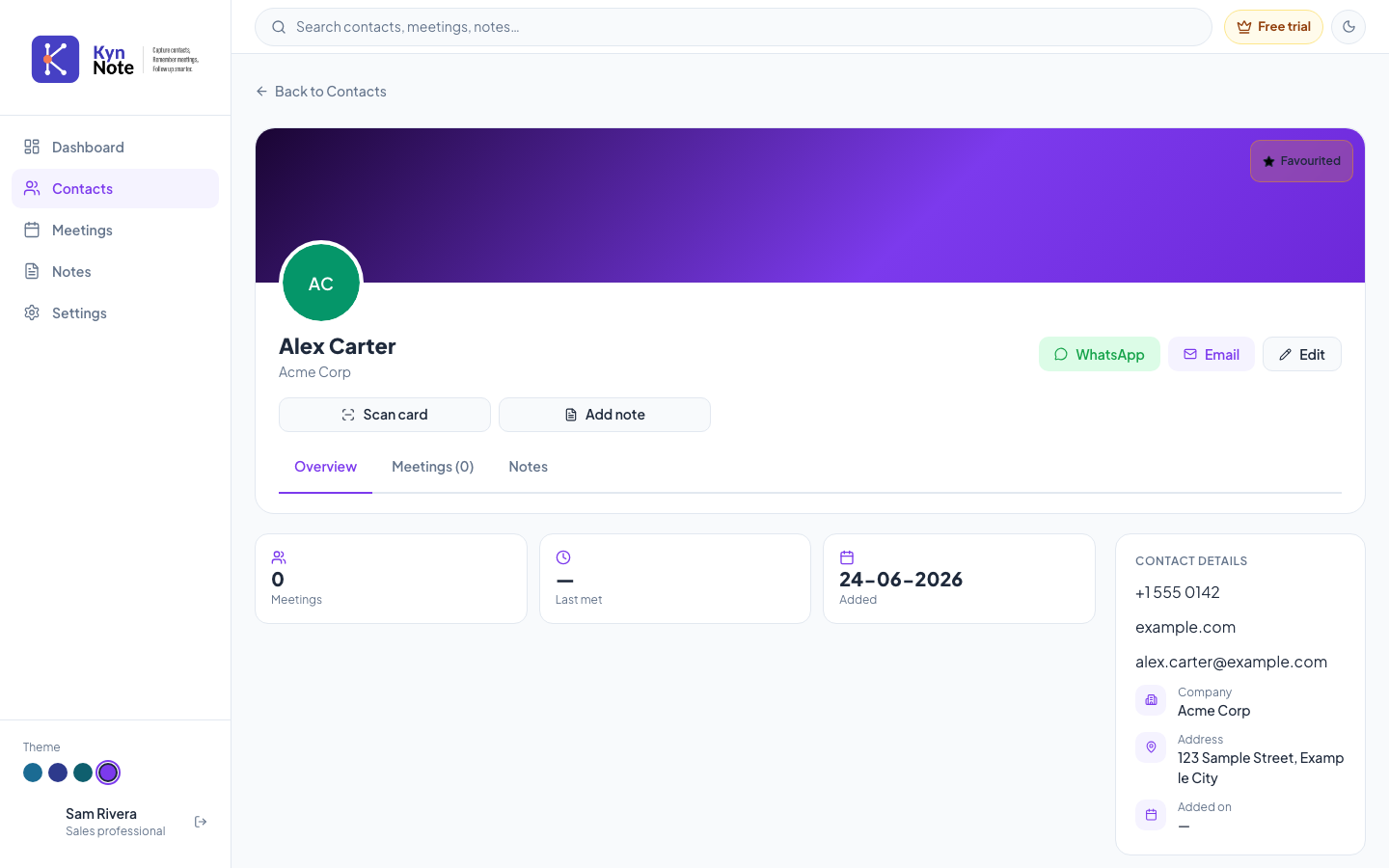
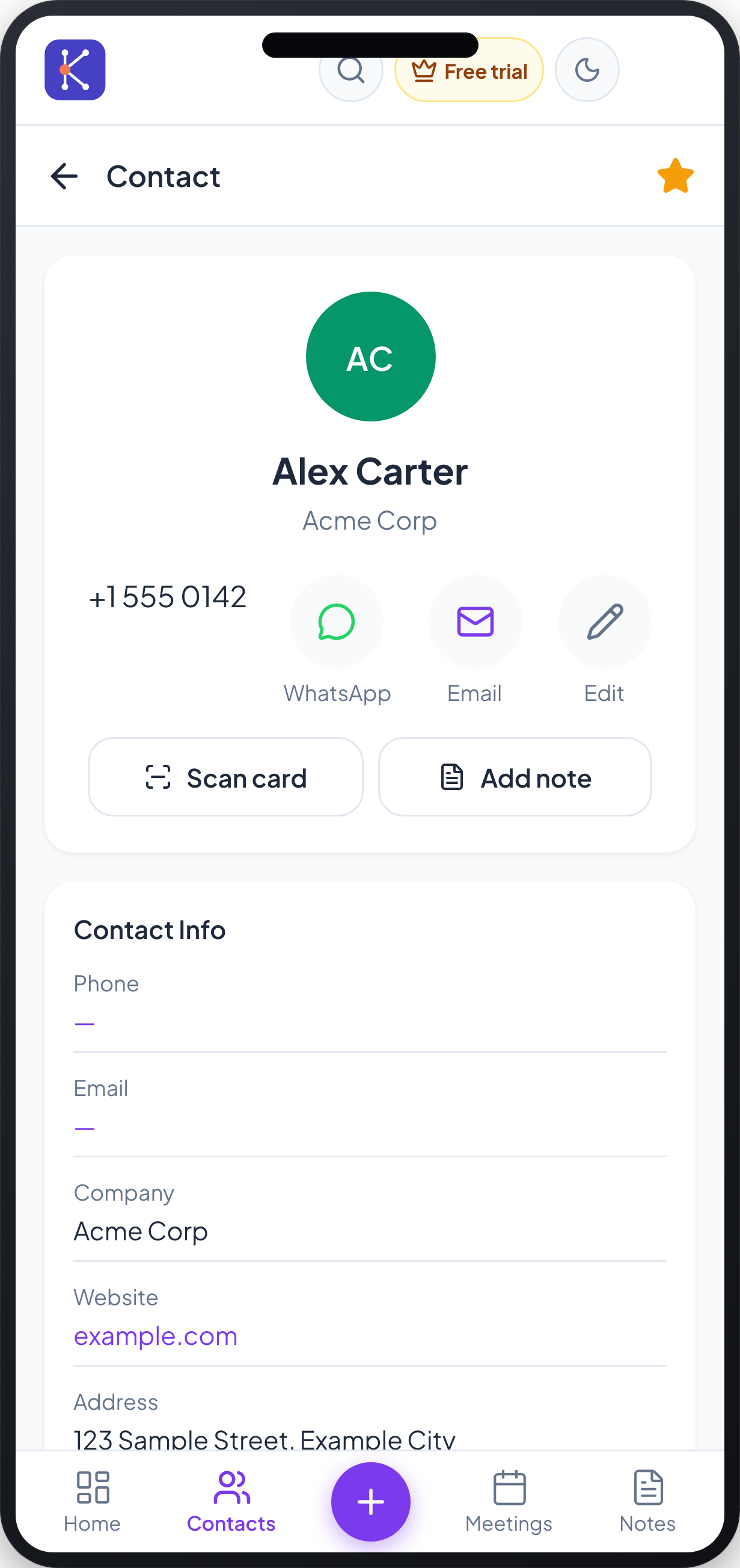
The Contact Details screen shows everything KynNote knows about a single contact — their photo or initials, company, phone, email, address, and meeting history — along with quick actions for reaching out, scanning a business card, and adding notes.
How to use it
- Open a contact from your Contacts list. On the web you can return to the list at any time using Back to Contacts (top left); on mobile, tap the back arrow next to the Contact title.
- At the top you'll see the contact's avatar (their photo or initials), name, and company.
- Use the quick contact buttons to reach the person:
- WhatsApp — start a WhatsApp conversation.
- Email — compose an email.
- Edit — open the Edit contact form to change their details.
- To capture details from a business card, tap Scan card. KynNote reads the card and updates the contact's name, email, phone(s), company, designation, website, and address from the scan.
- To record information about this person, tap Add note. Choose how you'd like to capture it:
- Type note — write the note yourself.
- Record note — dictate the note with your voice.
- Scan note — capture a written note with your camera. Notes added here are saved to this contact, not as a meeting.
- On the web, switch between the Overview, Meetings, and Notes tabs to see different views. The Meetings tab shows the number of meetings in its label (for example, Meetings (0)).
- Review the contact's information:
- On the web, the stat cards show Meetings count, Last met, and the date the contact was Added, with full details (phone, website, email, company, address, added-on date) in the Contact Details panel on the right.
- On mobile, the same details appear in a scrollable Contact Info section (Phone, Email, Company, Website, Address) below the action buttons.
- To mark a contact as a favourite, use the favourite control — the Favourited badge on the web (top right of the banner) or the star icon on mobile (top right of the header).
FAQs
What's the difference between adding a note here and logging a meeting? Notes added from this screen are saved directly to the contact and are not recorded as meetings. If you need a meeting record, use the Meetings area instead.
Why can't I edit or favourite a contact I just created? If a contact was created while offline and is still pending sync, editing and favouriting are unavailable until it syncs. KynNote will let you make these changes once you reconnect.
Where does the information from "Scan card" go? The scanned details replace or fill in the contact's name, email, phone numbers, company, designation, website, and address, and the card images are saved to the contact. You'll see a confirmation once the contact has been updated from the business card.
What do the WhatsApp and Email buttons do? They open WhatsApp or your email to contact the person using the details stored on their record. They don't change any of the contact's information.