Notes
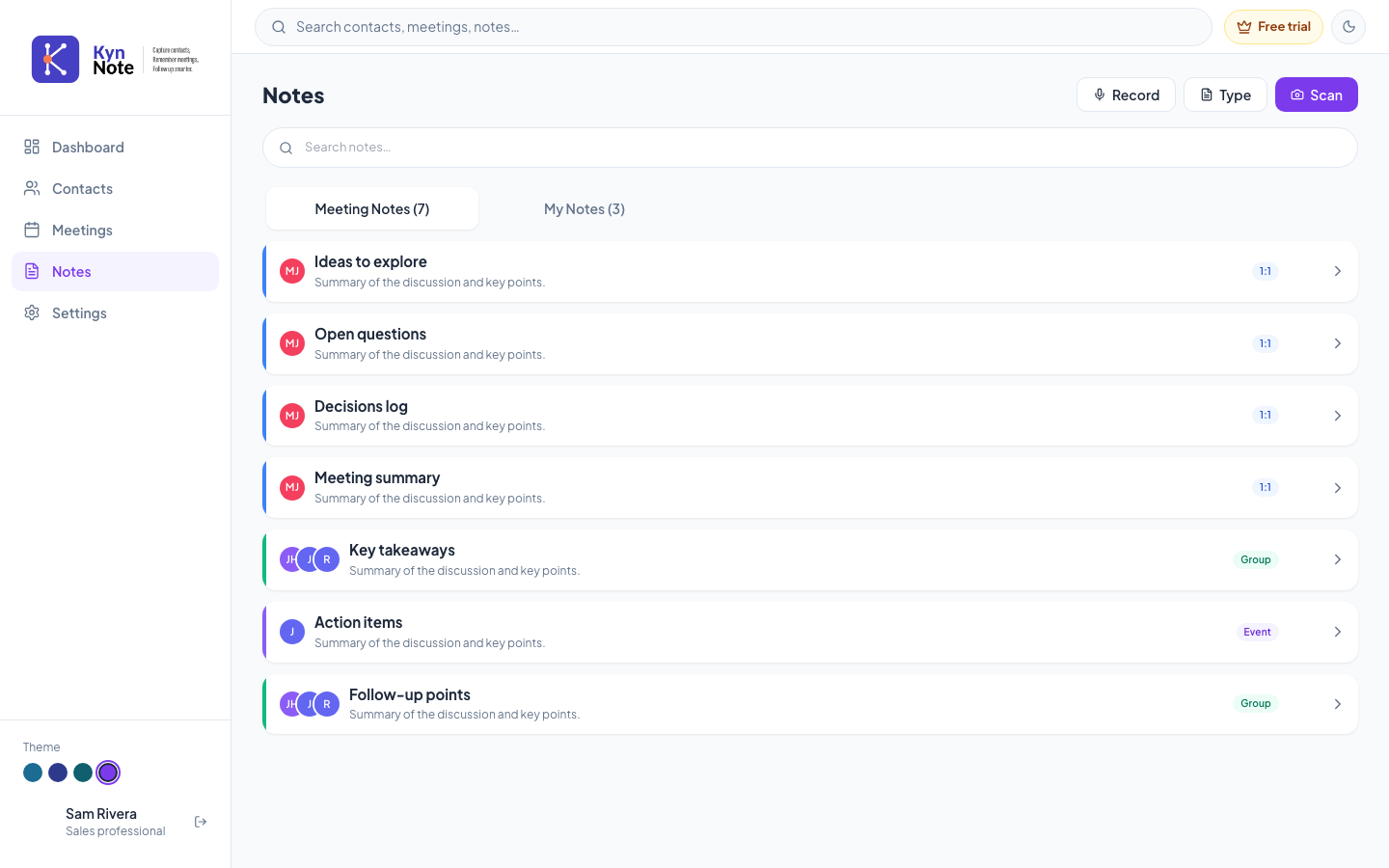
The Notes screen is where you capture, browse, and manage all your notes in KynNote. Notes are split between those linked to meetings and your standalone notes, and you can create new ones by recording, typing, or scanning.
How to use it
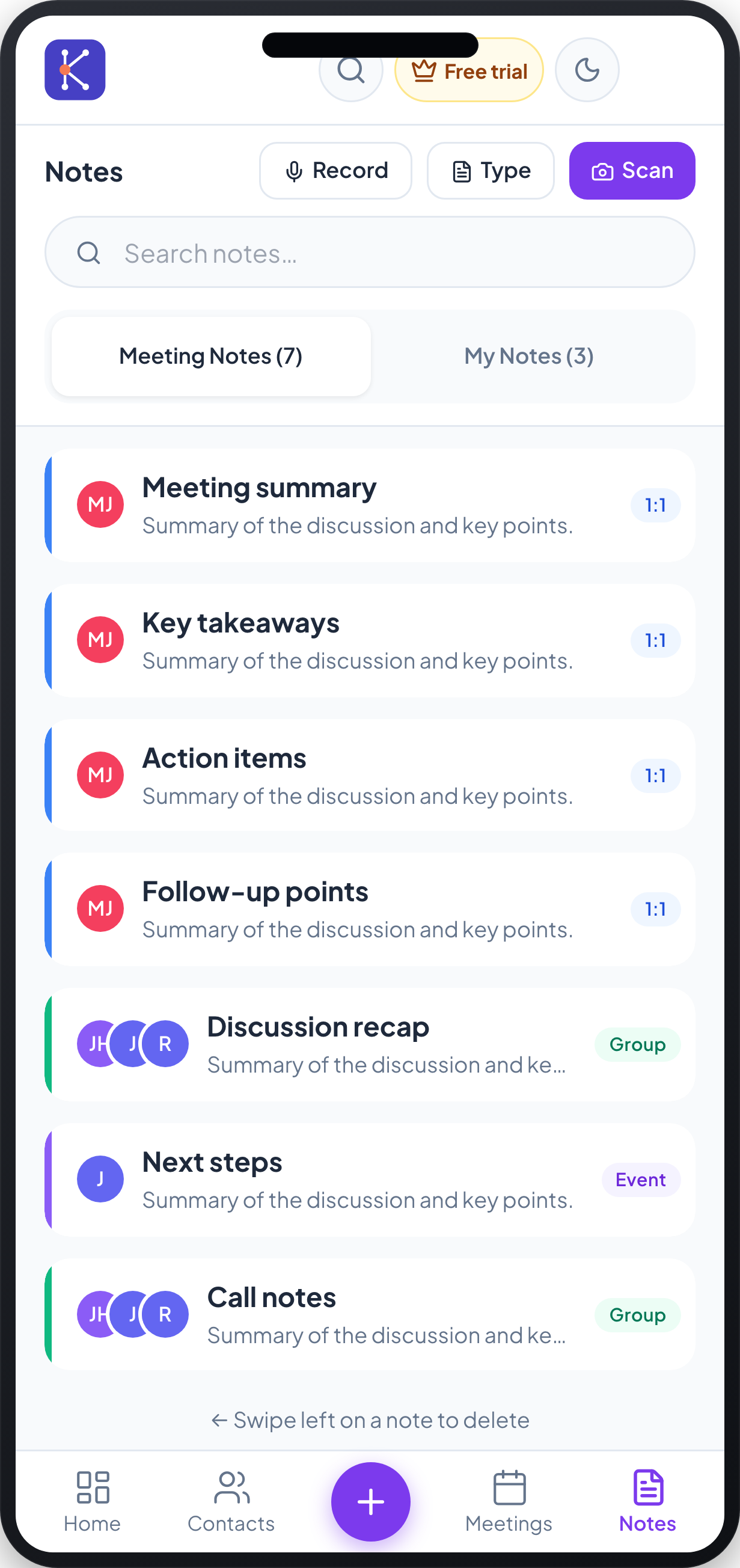
- Open Notes from the left navigation (desktop) or the Notes tab in the bottom bar (mobile).
- Use the two tabs to switch between Meeting Notes and My Notes. Each tab shows a count of how many notes it contains.
- To find a specific note, type in the Search notes… box.
- Each note card shows its title and a short preview. Meeting notes display the attendees' avatars and a meeting-type badge (for example 1:1, Group, or Event); standalone notes show a "Tap to view" badge.
- Click or tap a note to open it. The note detail shows when it was created, its formatted content, and an action bar where you can Summarise, Copy, or Share the note.
- To create a new note, use the buttons at the top of the screen:
- Record – capture a note by speaking.
- Type – write a note manually.
- Scan – capture a note from a document using your camera or an uploaded image.
- On mobile, you can also tap the + button in the bottom bar.
- When you choose Record or Type, a sheet asks you to either link the note to a meeting (optional) or enter a title for a standalone note. Use the meeting selector to search and pick a meeting, or type a Note title, then tap Continue to start composing.
- To delete a note:
- On desktop, hover over a note row and click the trash icon that appears.
- On mobile, swipe left on a note (a hint at the bottom of the list reads "Swipe left on a note to delete").
- Confirm by choosing Delete in the "Delete note?" dialog, or Cancel to keep the note. Deletion cannot be undone.
FAQs
What's the difference between Meeting Notes and My Notes? Meeting Notes are linked to a specific meeting and show the meeting's attendees and type badge. My Notes are standalone notes that aren't tied to a meeting.
Do I have to link a note to a meeting? No. Linking to a meeting is optional. If you don't select a meeting, you must enter a note title to create a standalone note.
Can I create a note by photographing handwritten notes? Yes. Use the Scan button to capture a document with your camera or upload an image, and KynNote will turn it into a note.
How do I get a quick summary of a long note? Open the note and use the Summarise action in the note's action bar to generate an AI summary, which you can then copy or share.