Schedule a Meeting
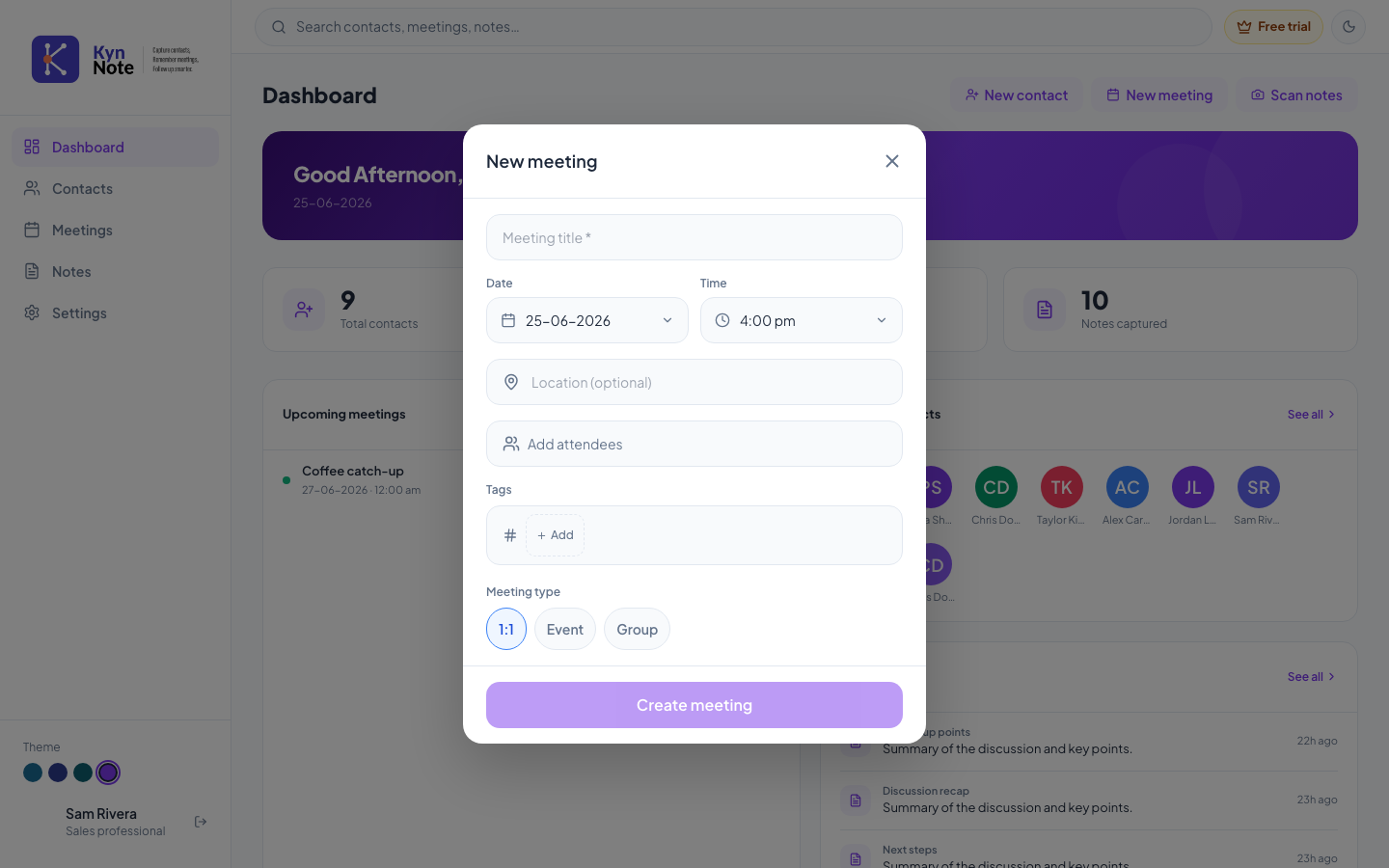
The New meeting form lets you create a meeting in KynNote by setting its title, date, time, location, attendees, tags, and type. You can open it from the New meeting button on the Dashboard or the + New meeting / + New button on the Meetings page.
How to use it
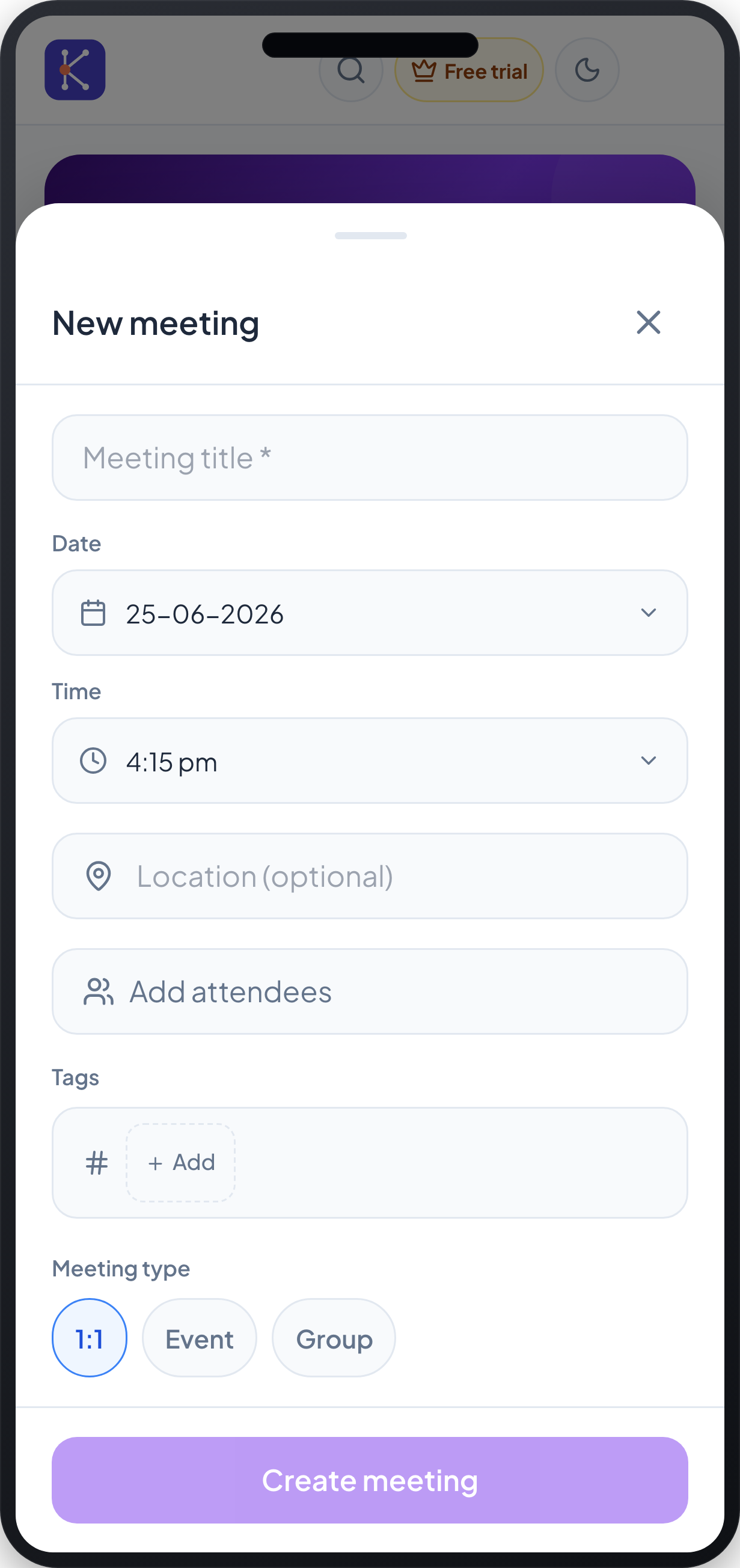
- Open the New meeting form. On desktop it appears as a centered dialog; on mobile it slides up as a bottom sheet.
- Enter a name in the Meeting title field. This field is required (marked with
*). - Set the Date by clicking the date field and choosing a day from the calendar. The form defaults to today's date.
- Set the Time by clicking the time field and selecting a slot from the list. Times are offered in 15‑minute increments, defaulting to the current time rounded to the nearest quarter hour.
- Optionally enter a meeting place in the Location (optional) field.
- Optionally click Add attendees to expand the attendee picker and select people for the meeting.
- Optionally add labels under Tags by clicking + Add.
- Choose a Meeting type: 1:1, Event, or Group. 1:1 is selected by default.
- Click Create meeting to save. A confirmation appears once the meeting is created, and the form closes.
- To close without saving, click the X in the top corner of the form (or, on mobile, dismiss the sheet).
FAQs
Why can't I create the meeting? A meeting title is required. If you leave the title blank or another field is invalid, an error message appears and the meeting is not created. Fill in the missing details and try Create meeting again.
What does the meeting type mean? The type categorizes your meeting as a 1:1, Event, or Group, and is shown as a colored badge on the meeting elsewhere in the app.
Are the location, attendees, and tags required? No. Only the title is required. Location is explicitly marked optional, and attendees and tags can be left empty.
Can I add a person who isn't an existing contact? Yes. Within the attendee picker you can create a new contact (entering at least a name); they are then added as an attendee to the meeting.