Meetings
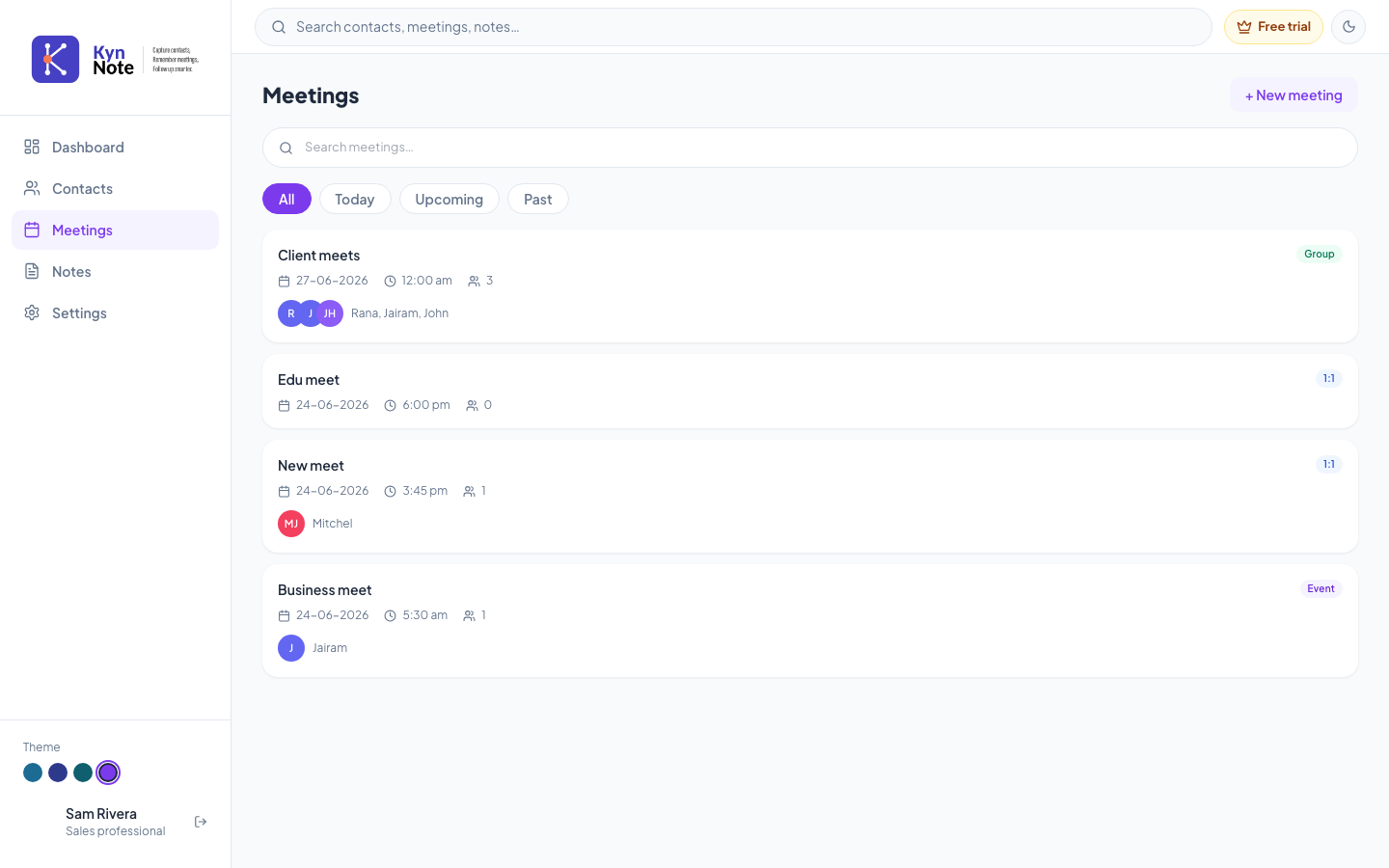
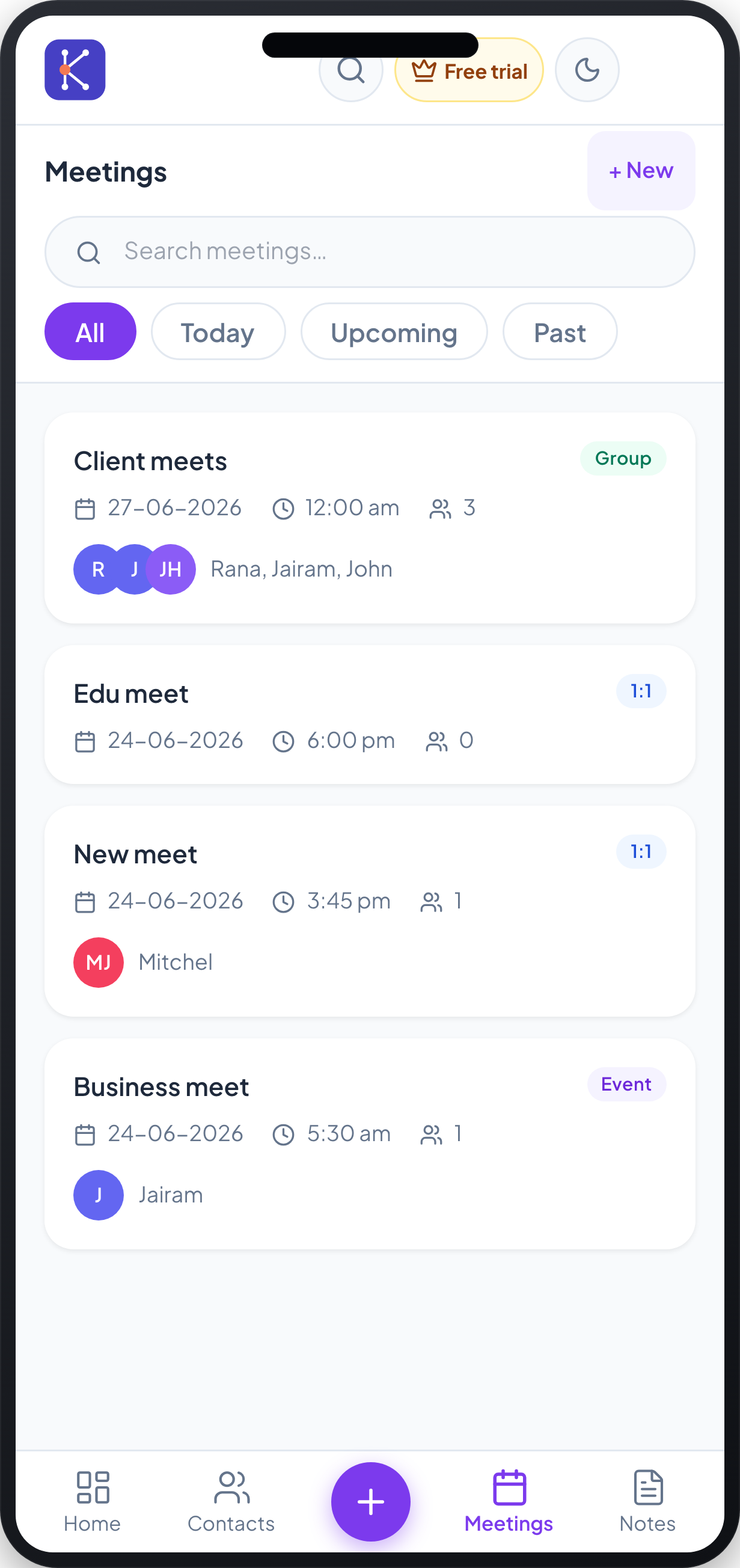
The Meetings screen lists all your scheduled meetings, with their date, time, attendees, and type. From here you can search and filter your meetings, open any meeting for details, or create a new one.
How to use it
- Open Meetings from the left sidebar (desktop) or the Meetings tab in the bottom bar (mobile).
- Browse the list of meeting cards. Each card shows the meeting title, a type badge (1:1, Group, or Event), the date, time, and the number of attendees. If a meeting has attendees, their initials and first names appear at the bottom of the card.
- To find a specific meeting, type into the Search meetings… box. The list filters as you type by title (and company). Clear the box to see all meetings again.
- Use the filter buttons to narrow the list:
- All — every meeting.
- Today — meetings dated today.
- Upcoming — meetings dated after today.
- Past — meetings dated before today.
- Click or tap any meeting card to open its detail page.
- To create a meeting:
- On desktop, click + New meeting at the top right.
- On mobile, tap + New at the top right, or the central + button in the bottom bar.
This opens the New meeting form, where you enter a title, pick a date and time, optionally add a location, choose a meeting type, and add attendees. 7. If no meetings match, an empty state appears. When you have no filter search active, a + New meeting button is shown there to get you started.
FAQs
Why do some meeting cards show a "1:1", "Group", or "Event" label? That label is the meeting type. 1:1 is a one-on-one meeting, Group is a group meeting, and Event marks an event. You set the type when creating or editing the meeting.
What does the number next to the people icon mean? It's the count of attendees on that meeting. A card with attendees also shows up to three attendee avatars and their first names below the meeting details.
My search isn't finding a meeting by attendee name. Why? The search box on this screen matches meeting titles (and company), not attendee names. Try searching by the meeting's title instead.
How do I see the full details or notes for a meeting? Click or tap the meeting card to open its detail page, where you can view and add notes, edit the meeting, and manage attendees.