Meeting Details
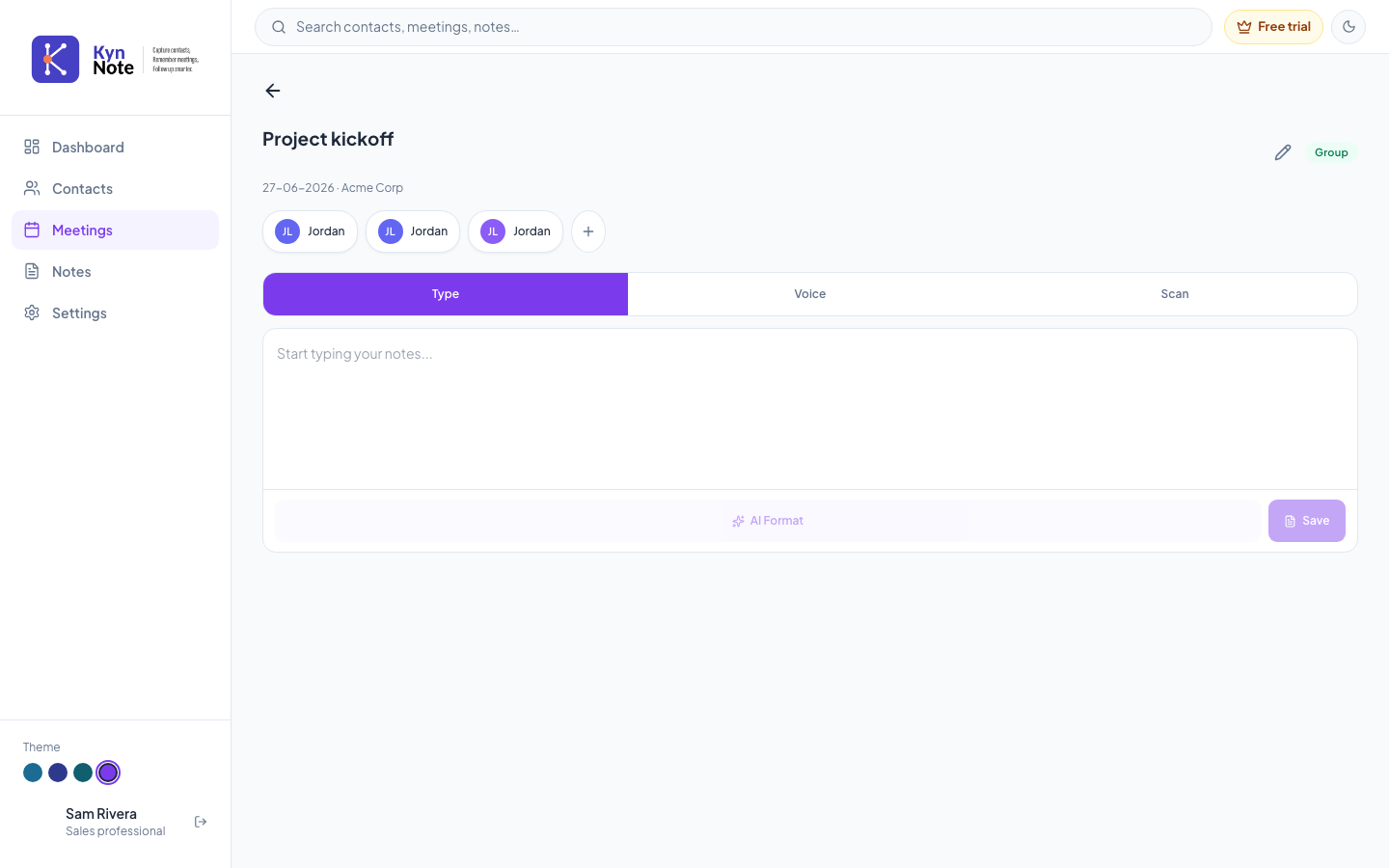
The Meeting Details screen shows a single meeting's information — its title, date, company, and attendees — and gives you a note composer for capturing notes directly against that meeting.
How to use it
- Open a meeting from the Meetings list to reach this screen. The meeting title (for example, "Project kickoff") appears near the top, with the meeting date and company shown beneath it (for example, "27-06-2026 · Acme Corp").
- To edit the meeting's details, tap the pencil icon next to the title. This opens the Edit meeting form, where you can change the title, date, time, location, attendees, and tags.
- Review the attendees shown as chips below the date (each with the contact's initials and name).
- To add more attendees, tap the + chip at the end of the attendee row. In the Add attendees panel, search for existing contacts, select one or more, and save. You can also add a brand-new contact from the same panel.
- To capture a note, choose a capture method using the tabs:
- Type — type your notes into the "Start typing your notes…" box.
- Voice — record a spoken note.
- Scan — capture notes from an image.
- After typing, use AI Format to structure your note into sections (such as Key Points, Action Items, Follow-ups, and Summary).
- Tap Save to store the note against this meeting.
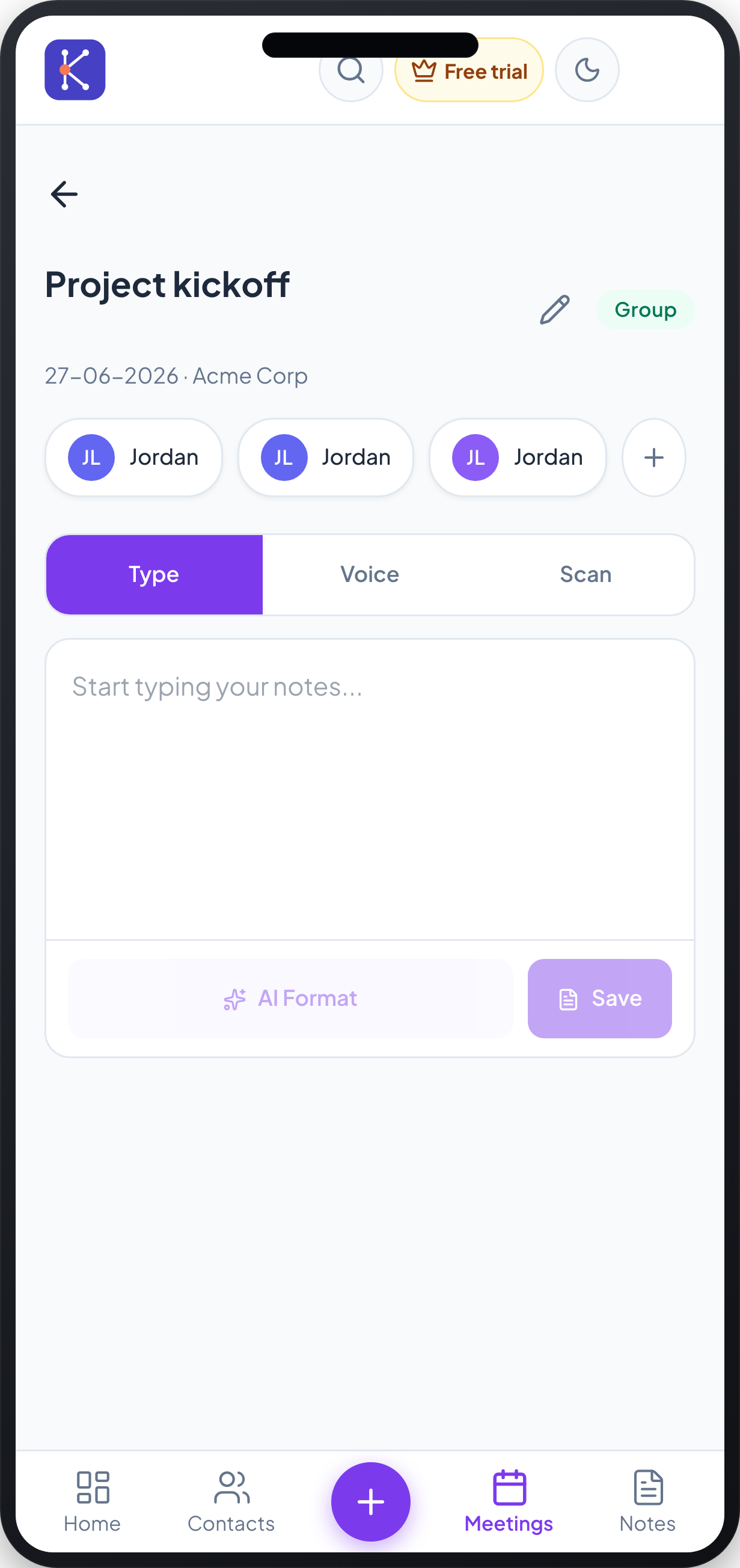
On mobile, the screen uses the same layout, with the main navigation moved to a bottom bar (Home, Contacts, Meetings, Notes) and a central + button. Editing and attendee panels open as bottom sheets rather than centred dialogs.
FAQs
How do I add someone who isn't already a contact? In the Add attendees panel, fill in the new contact's name (required) and, optionally, email and phone. Once created, they are automatically selected as an attendee.
Can I format my typed notes automatically? Yes. After typing, tap AI Format to organise your note into sections like Key Points, Action Items, Follow-ups, and a Summary before saving.
What's the difference between the Type, Voice, and Scan tabs? Type lets you write notes manually, Voice records a spoken note, and Scan captures notes from an image. They all save notes against the same meeting.
Where do saved notes appear? Saved notes are stored with the meeting and can be reviewed in the meeting's note history, where you can expand each note and copy, share, or summarise it.