Settings
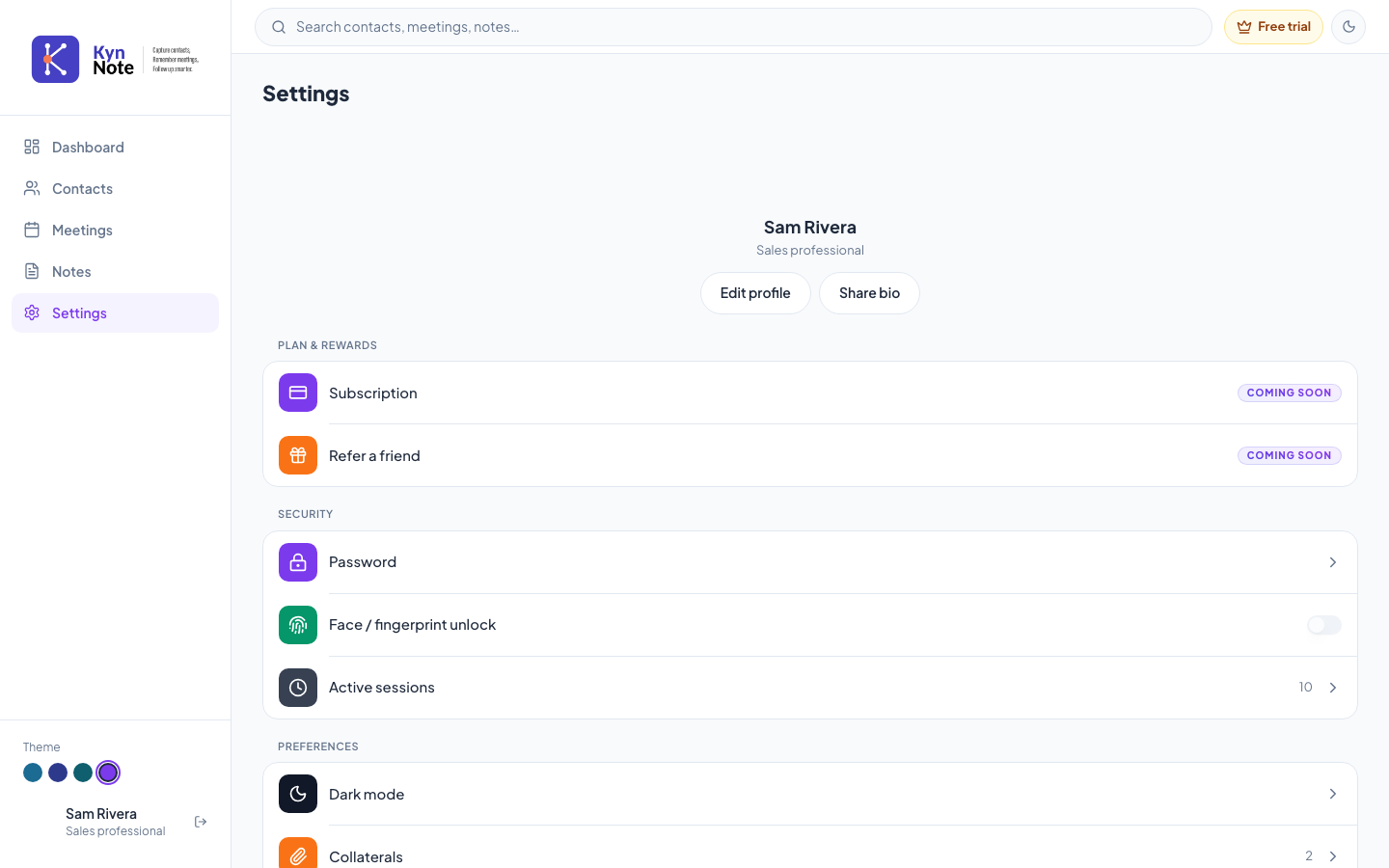
The Settings screen is where you manage your KynNote profile, security, and app preferences. From here you can edit your profile, change your password, manage active sessions, turn biometric unlock on or off, and switch the app's appearance.
How to use it
- Open Settings from the left navigation (desktop) or via the navigation bar (mobile).
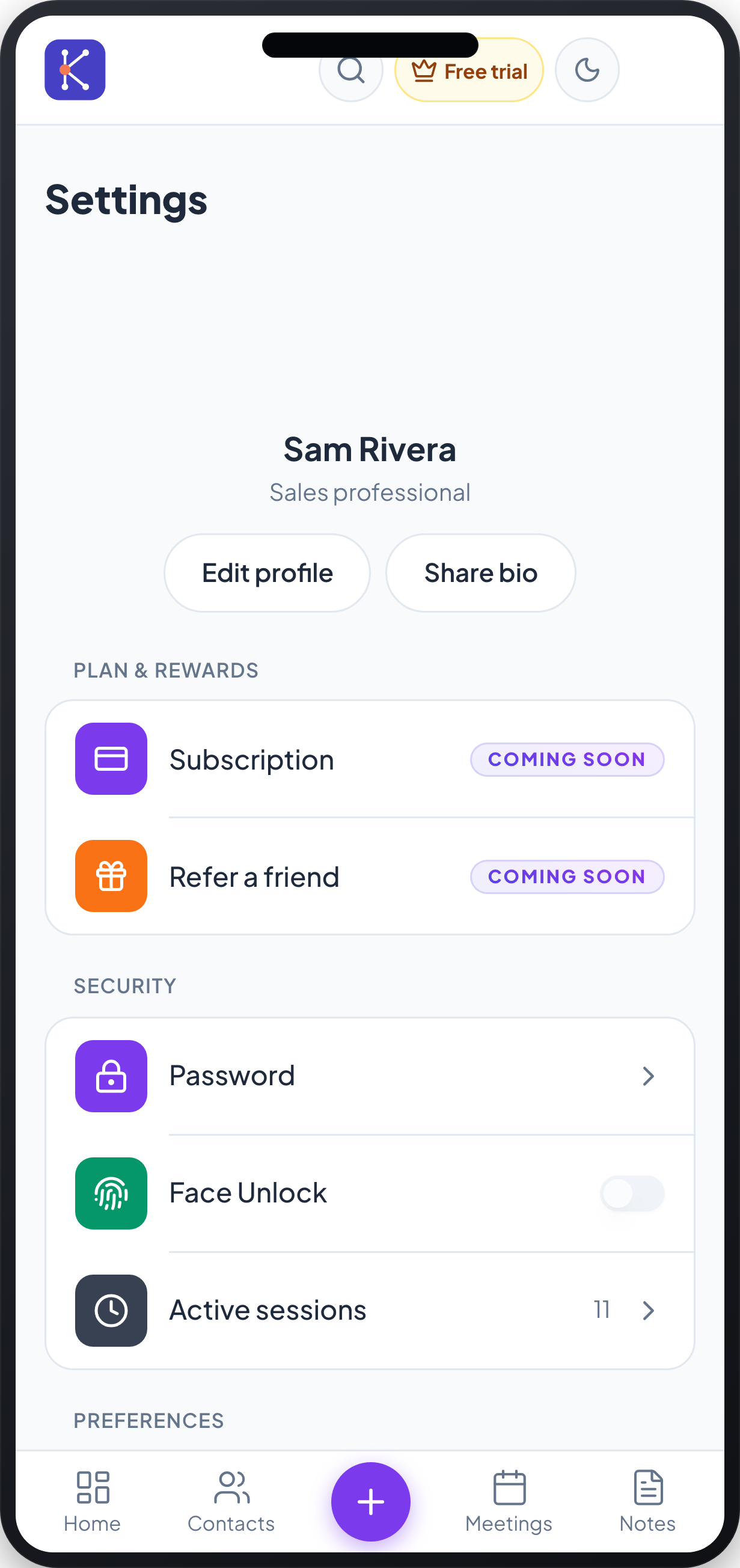
- At the top you'll see your name and profession (for example, "Sam Rivera — Sales professional"). Use the two buttons below it to manage your public details:
- Edit profile — opens your profile so you can update it.
- Share bio — shares your bio.
- Under Plan & rewards you'll find:
- Subscription — marked Coming soon.
- Refer a friend — marked Coming soon.
- Under Security:
- Password — tap the row to open the Password page. If you already have a password, you can change it by entering your current password, a new password, and confirming it, then choosing Update password (you'll be signed out after updating). If you don't yet have a password, you'll instead see a Create password form to set one. Use the eye icon in any password field to show or hide what you type.
- Face / fingerprint unlock (shown as Face Unlock on iOS) — use the toggle to turn biometric unlock on or off. The toggle is unavailable if your device doesn't support it.
- Active sessions — the row shows how many sessions are active (for example, 10). Tap it to view each session, where your Current session is labelled, and choose Revoke to sign out any other device.
- Under Preferences:
- Dark mode — open this to adjust appearance. On mobile this opens an Appearance sheet with a Dark mode toggle and a Colour scheme picker. You can also toggle dark mode quickly using the moon icon in the top bar.
- Collaterals — shows a count and opens the Collaterals page.
FAQs
Why are Subscription and Refer a friend greyed out? Both are labelled Coming soon, so these features aren't available yet.
What happens when I change my password? You'll be signed out after the password is updated and will need to sign in again.
How do I sign out of a device I no longer use? Open Active sessions, find the session for that device, and choose Revoke. Your current session is marked Current so you can avoid signing yourself out.
Where do I change between light and dark mode? Open Dark mode under Preferences to use the appearance options, or tap the moon icon in the top bar to toggle it directly.