Scan Notes
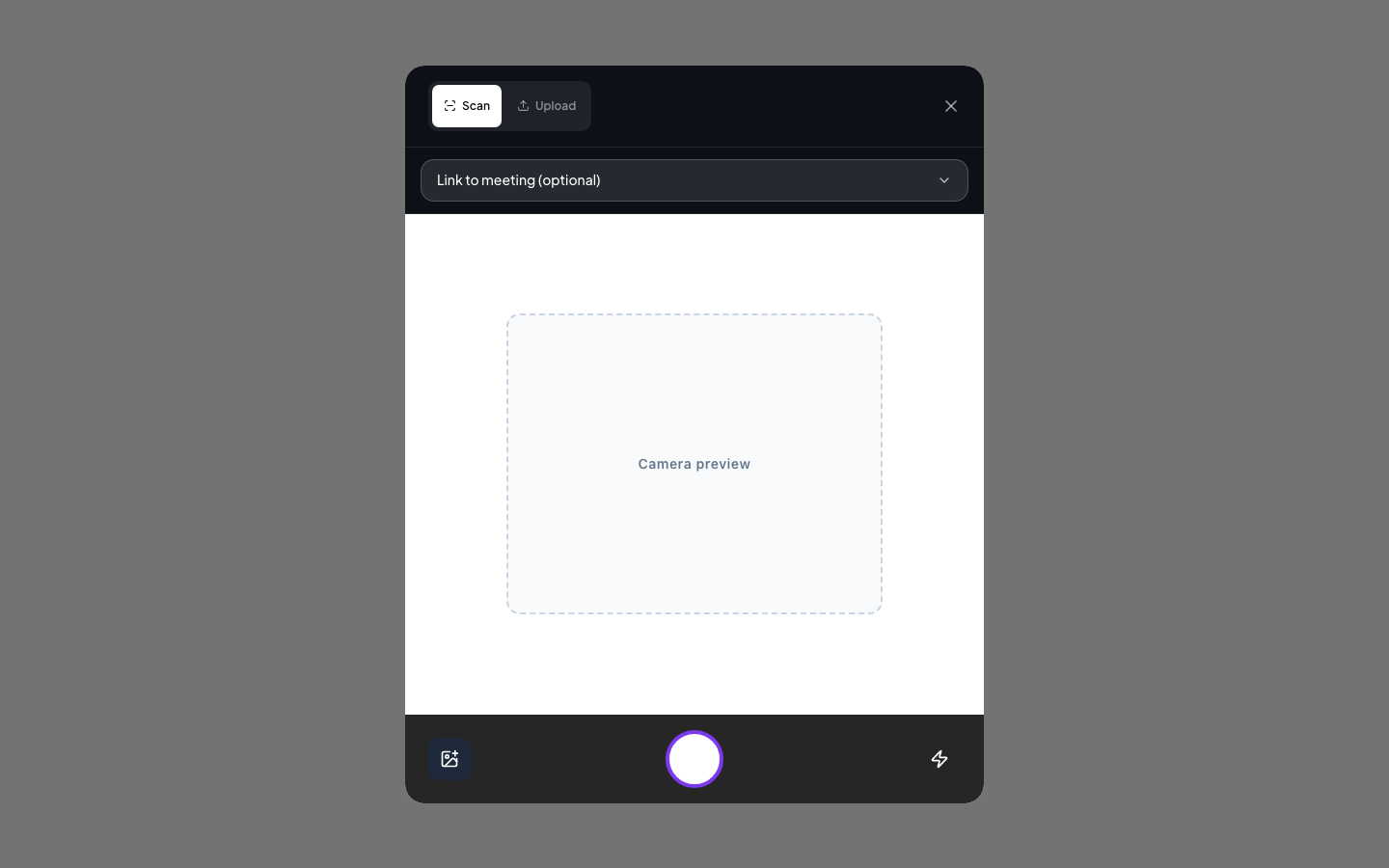
Scan Notes lets you capture handwritten or printed notes with your device camera (or an uploaded image) and turn them into a saved note. You can optionally link the scan to a meeting before capturing.
How to use it
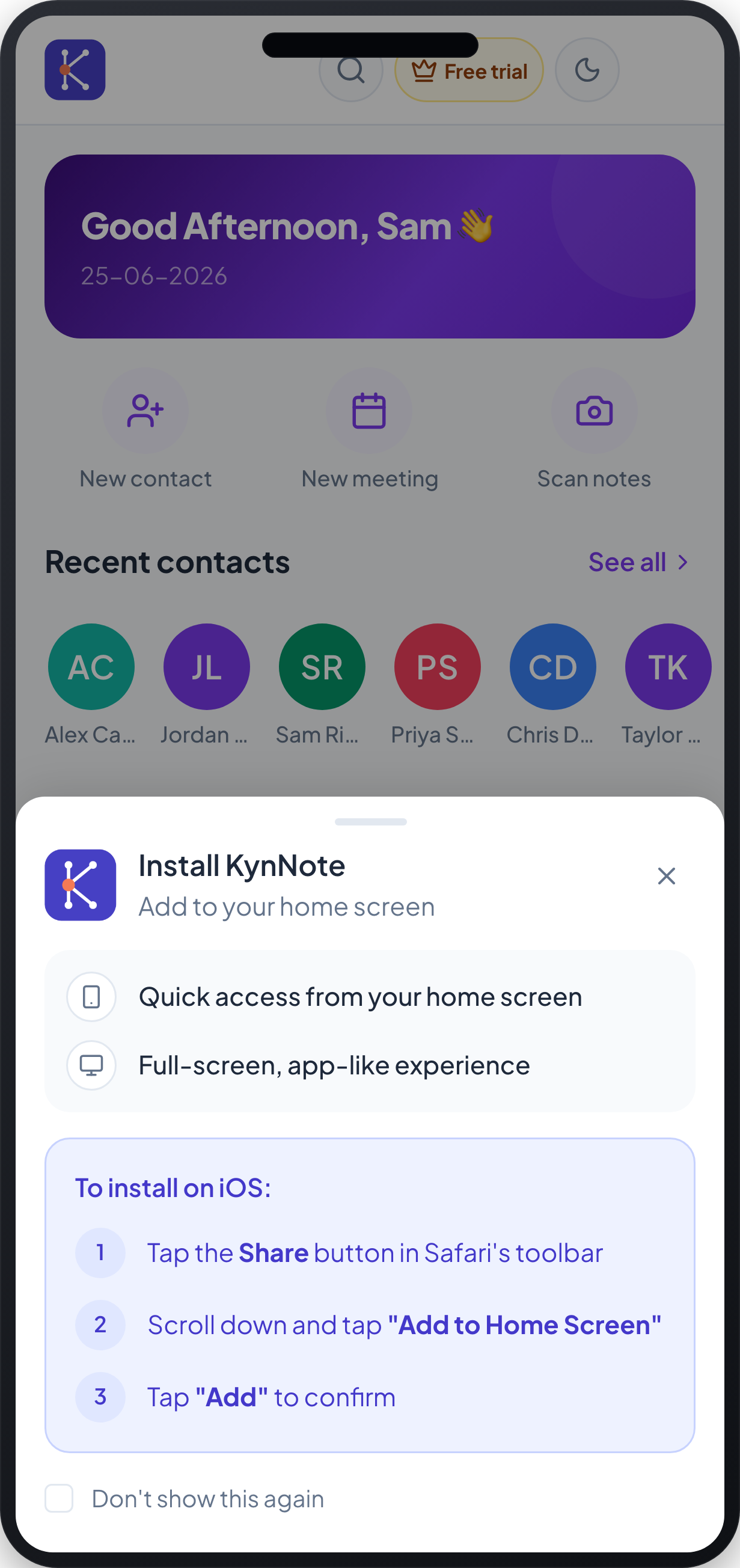
- From the home screen, tap Scan notes (the camera action) to open the scanner.
- Choose how to capture your note using the toggle at the top:
- Scan — use the live camera viewfinder.
- Upload — pick an existing image instead of using the camera.
- (Optional) Use the Link to meeting (optional) field to attach the scan to an existing meeting. Leave it empty to save the note on its own.
- Position your note inside the dashed Camera preview frame.
- If your device supports it, tap the flash (lightning) button in the bottom toolbar to turn the camera torch on or off for better lighting.
- To add an image from your gallery instead of capturing live, tap the image button on the left of the bottom toolbar.
- Tap the large round capture button in the centre of the bottom toolbar to take the photo.
- Review the captured page. You can retake it if it isn't clear, then continue to have the text extracted.
- After processing, review the result in Preview, switch to Edit to correct the extracted text if needed, then save the note.
- To leave without saving, tap the X (close) button in the top corner.
On mobile, the scanner opens as a full-screen view with the capture controls along the bottom. The desktop experience offers the same Scan/Upload toggle and viewfinder within a window.
FAQs
Do I have to link the scan to a meeting? No. The meeting link is optional. If you don't pick a meeting, the scan is saved as a standalone note (you may be asked for a note title).
Why isn't the flash button doing anything? The torch only works on devices and cameras that support it. If your camera doesn't expose a torch, toggling flash has no effect.
Can I scan a note that's already a photo on my device? Yes. Switch to Upload (or use the image button in the capture toolbar) to select an existing image instead of using the live camera.
What happens after the photo is captured? The app extracts the text and shows a result you can review in Preview or fix in Edit before saving.