Dashboard
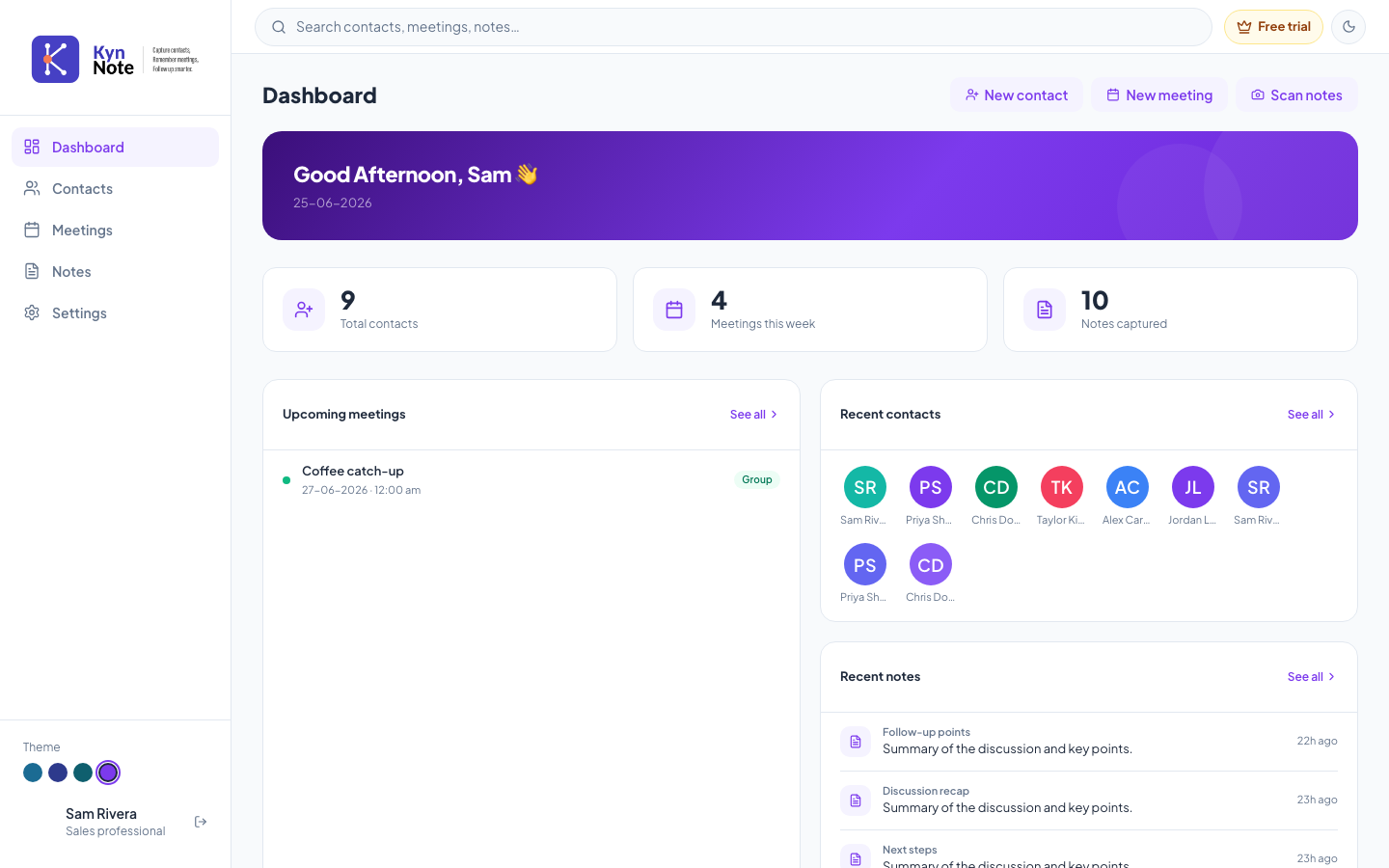
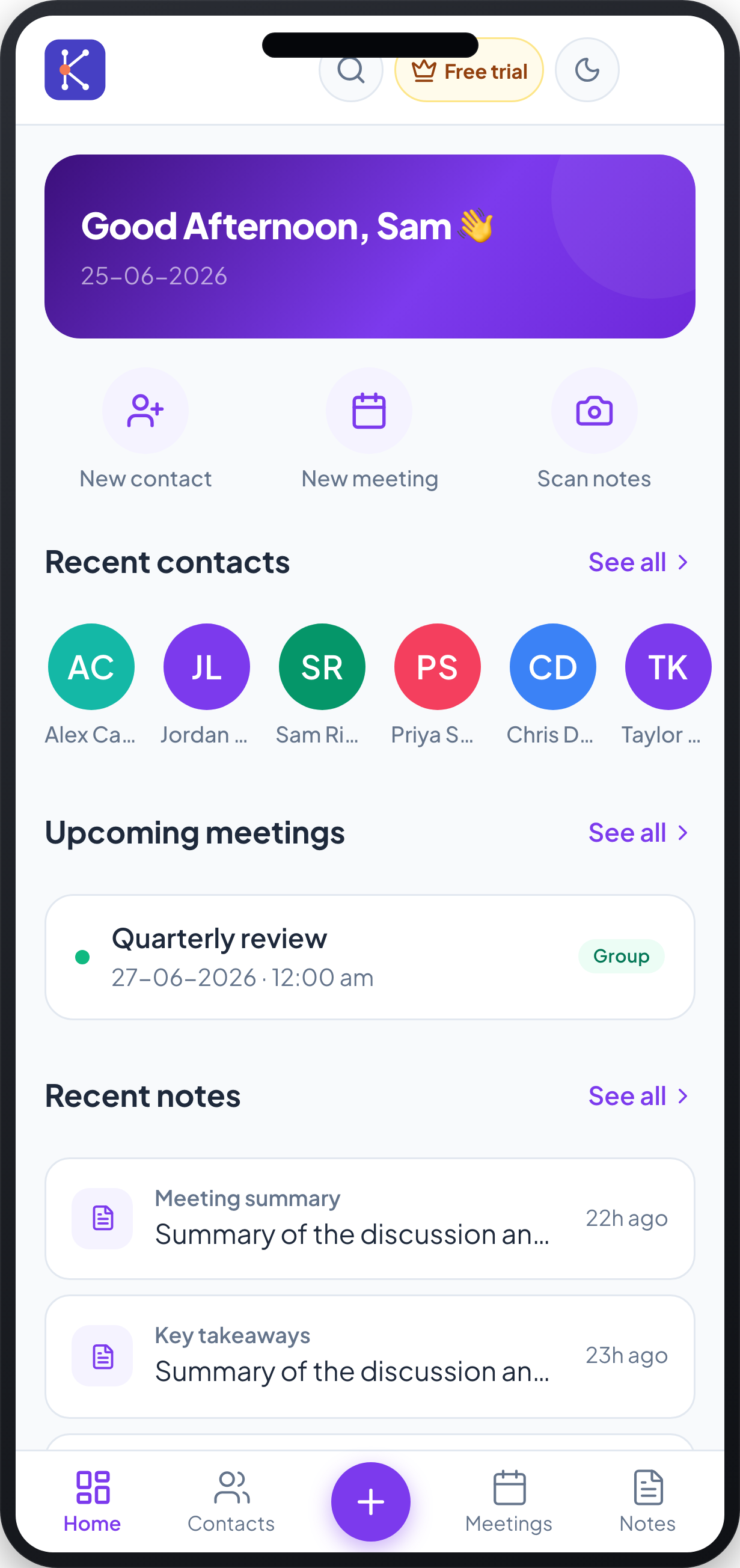
The Dashboard is your KynNote home screen. It opens with a personalized greeting and gives you a quick overview of your activity, fast actions for adding items, and shortcuts to your recent contacts, meetings, and notes.
How to use it
- Read your greeting. At the top, a colored banner shows a time-based greeting with your first name (for example, "Good Afternoon, Sam 👋") and today's date.
- Check your key stats (desktop). Below the banner, three cards summarize your account: Total contacts, Meetings this week, and Notes captured.
- Use the quick actions.
- New contact — start adding a new contact.
- New meeting — schedule a new meeting.
- Scan notes — open the note scanner.
On desktop these appear as buttons in the top-right of the Dashboard header. On mobile they appear as three round icon buttons just below the greeting banner. 4. Open a recent contact. In Recent contacts, tap or click a contact's colored avatar to open that contact's details. Select See all to view your full contacts list. 5. Open a meeting. The meetings panel is titled Upcoming meetings when you have meetings coming up; otherwise it shows Recent meetings. Each row shows the meeting title, date and time, and a type badge (for example, Group). Click or tap a meeting to open it, or select See all to view all meetings. 6. Open a recent note. In Recent notes, each entry shows a title, a short preview, and how long ago it was captured (for example, "22h ago"). Select a note to open it, or select See all to view all notes. 7. Navigate the app. - On mobile, use the bottom navigation bar: Home, Contacts, the central + button, Meetings, and Notes. - On desktop, use the left sidebar: Dashboard, Contacts, Meetings, Notes, and Settings. 8. Search. Use the search box ("Search contacts, meetings, notes…") at the top to find items across the app. 9. Switch theme. Use the moon icon at the top to toggle the display mode. On desktop you can also pick a color theme from the Theme swatches near the bottom of the sidebar.
FAQs
Why does my meetings panel say "Recent meetings" instead of "Upcoming meetings"? The panel shows Upcoming meetings when you have meetings scheduled for today or later. If you have none coming up, it switches to Recent meetings so the panel still shows useful information.
What does the "Notes captured" number count? It reflects the total number of notes recorded on your account. If the stats can't be loaded, the Dashboard falls back to counting the notes it already has available.
How many recent items does the Dashboard show? Recent contacts show up to 10 (up to 8 on the mobile layout), the meetings panel shows up to 5 (up to 3 on mobile), and Recent notes show up to 4 (up to 3 on mobile). Select See all in any section to view the complete list.
What do the icons on a note mean? The icon indicates how the note was created — a camera for a scanned note, a microphone for a voice note, and a document icon for a typed note.